Images and Fonts
Images and Fonts
The LCP Element Nobody Optimized
On the e-commerce platform, the LCP element on 72% of page loads is an image. Product photos on listing pages, hero banners on the homepage, and the primary product image on detail pages. The LCP score is, in most cases, a measurement of how fast the largest image renders.
The product listing page serves a 1200x800 JPEG hero image at 180KB. The same image as WebP: 95KB. As AVIF: 68KB. The transfer saving of switching from JPEG to AVIF is 112KB per image. On a 4G connection with 1.6 Mbps effective throughput, 112KB takes 560ms to download. That is 560ms of LCP improvement from a format change alone, no code changes, no architectural changes.
Images are the easiest performance win on most production sites. They are also the most frequently ignored because image optimization does not feel like “engineering.” It is.
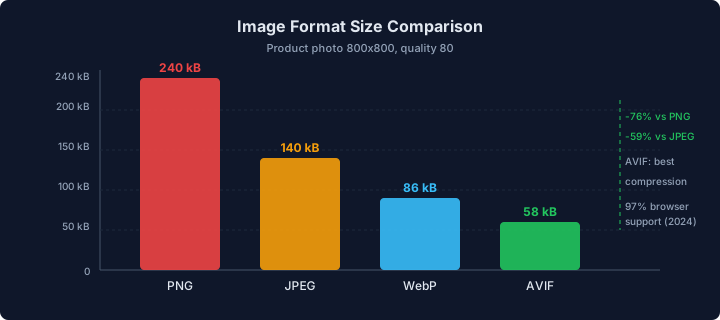
The chart shows the same product photo encoded in JPEG, WebP, and AVIF at equivalent visual quality. Each bar represents the transfer size. The AVIF bar is 62% shorter than the JPEG bar. On a 4G connection, that translates directly to LCP improvement, because the image download is the longest task on the critical path for image-heavy pages.
Modern Image Formats
WebP provides 25-35% smaller files than JPEG at equivalent quality. Browser support is universal in all browsers that receive security updates. There is no reason to serve JPEG to browsers that support WebP.
AVIF provides 40-50% smaller files than JPEG at equivalent quality. Browser support covers Chrome, Firefox, and Safari 16+. Opera and Edge (Chromium-based) support it through Chrome’s implementation. The 5% of traffic on unsupported browsers falls back to WebP or JPEG.
The <picture> element provides format negotiation without JavaScript:
<!-- SLOW: Single format, no responsive sizes -->
<img src="/images/product-hero.jpg" alt="Product photo" />

<!-- FAST: Format negotiation with responsive sizes -->
<picture>
  <source
    type="image/avif"
    srcset="
      /images/product-hero-400w.avif   400w,
      /images/product-hero-800w.avif   800w,
      /images/product-hero-1200w.avif 1200w
    "
    sizes="(max-width: 640px) 100vw, (max-width: 1024px) 50vw, 800px"
  />
  <source
    type="image/webp"
    srcset="
      /images/product-hero-400w.webp   400w,
      /images/product-hero-800w.webp   800w,
      /images/product-hero-1200w.webp 1200w
    "
    sizes="(max-width: 640px) 100vw, (max-width: 1024px) 50vw, 800px"
  />
  <img
    src="/images/product-hero-800w.jpg"
    alt="Product photo"
    width="800"
    height="533"
    loading="eager"
    decoding="async"
    fetchpriority="high"
  />
</picture>
The sizes attribute tells the browser how wide the image will be displayed at each viewport width, before the CSS has loaded. Without sizes, the browser assumes the image is 100vw (full viewport width) and always downloads the largest srcset candidate, wasting bandwidth on desktop where the image occupies half the screen.
The fetchpriority="high" attribute on the LCP image tells the browser to prioritize this image’s download over other resources. Without it, the browser’s default heuristic may deprioritize images in favor of JavaScript and CSS, delaying LCP.
The loading="eager" attribute is the default for images, but explicitly setting it on the LCP image documents intent and prevents a future developer from adding loading="lazy" to all images in a batch optimization, which would delay the LCP image.
Lazy Loading Below the Fold
Every image that is not the LCP element and not visible in the initial viewport should use loading="lazy". The browser defers these downloads until the user scrolls near them, freeing bandwidth and main thread time for critical resources.
// React component for product grid images
interface ProductImageProps {
  src: string;
  alt: string;
  width: number;
  height: number;
  isAboveFold: boolean;
}

function ProductImage({
  src,
  alt,
  width,
  height,
  isAboveFold,
}: ProductImageProps): JSX.Element {
  const baseName = src.replace(/\.\w+$/, '');

  return (
    <picture>
      <source
        type="image/avif"
        srcSet={`${baseName}-400w.avif 400w, ${baseName}-800w.avif 800w`}
        sizes="(max-width: 640px) 50vw, 25vw"
      />
      <source
        type="image/webp"
        srcSet={`${baseName}-400w.webp 400w, ${baseName}-800w.webp 800w`}
        sizes="(max-width: 640px) 50vw, 25vw"
      />
      <img
        src={`${baseName}-400w.jpg`}
        alt={alt}
        width={width}
        height={height}
        loading={isAboveFold ? 'eager' : 'lazy'}
        decoding="async"
        fetchpriority={isAboveFold ? 'high' : 'auto'}
      />
    </picture>
  );
}
The isAboveFold prop is determined by the item’s position in the product grid. On a desktop viewport, the first 8 items are above the fold. On mobile, the first 4. The calling component passes this based on the item index:
// SLOW: All images load eagerly
{products.map((product) => (
  <ProductImage key={product.id} src={product.image} alt={product.name}
    width={400} height={400} isAboveFold={true} />
))}

// FAST: Only above-fold images load eagerly
{products.map((product, index) => (
  <ProductImage key={product.id} src={product.image} alt={product.name}
    width={400} height={400} isAboveFold={index < 8} />
))}
On the e-commerce listing page with 48 products, changing from all-eager to selective lazy loading:
- HTTP requests during initial load: 48 images → 8 images (83% reduction)
- Initial page weight: 480KB images → 120KB images
- LCP: unchanged (the LCP image is still eager)
- Time to Interactive: improved by 620ms (less bandwidth contention)
- Data saved for users who never scroll: 360KB
LCP Image Preloading
The LCP image on the product detail page has a dependency chain: HTML → JS bundle → React render → <img> element created → browser discovers image → browser downloads image. The image cannot start downloading until React renders the component that contains it.
Preloading breaks this chain by telling the browser about the image in the HTML <head>, before any JavaScript executes:
<!-- In the HTML <head>, server-rendered or injected during SSR -->
<link
  rel="preload"
  as="image"
  type="image/avif"
  href="/images/product-main-800w.avif"
  imagesrcset="
    /images/product-main-400w.avif 400w,
    /images/product-main-800w.avif 800w,
    /images/product-main-1200w.avif 1200w
  "
  imagesizes="(max-width: 640px) 100vw, 50vw"
  fetchpriority="high"
/>
The browser sees this <link> tag as soon as it parses the HTML <head> and begins downloading the image immediately, in parallel with JavaScript bundle downloads. The image download and the JavaScript download overlap instead of being sequential.
On the product detail page:
| Metric | Without Preload | With Preload | Delta |
|---|---|---|---|
| Image download start | 680ms | 40ms | -640ms |
| LCP | 3.8s | 2.4s | -1,400ms |
The 1,400ms LCP improvement comes from two effects: the image download starts 640ms earlier, and the download benefits from full bandwidth availability before JavaScript bundles begin competing for throughput.
The CI Lighthouse assertion for LCP catches pages where the preload is missing or misconfigured.
Font Loading and CLS Prevention
Web fonts cause CLS when the browser renders text with a fallback font, then re-renders with the web font after it loads. The text geometry changes (line height, character width, word spacing), pushing content around the page.
The font-display descriptor controls this behavior:
font-display: swap: Show fallback immediately, swap to web font when loaded. Causes CLS.font-display: block: Hide text for up to 3 seconds, then show fallback. Causes FOIT (Flash of Invisible Text). Terrible for LCP if text is the LCP element.font-display: optional: Show fallback if font is not already cached. Never swap. Zero CLS.font-display: fallback: Likeswapbut with a shorter swap period. Small CLS window.
For performance-critical pages, font-display: optional eliminates CLS entirely. The web font loads in the background and is used on the next navigation. First-time visitors see the fallback font. Returning visitors see the web font. The visual difference between a well-matched fallback and the web font is minimal with proper font metric overrides.
/* SLOW: font-display swap causes CLS */
@font-face {
  font-family: "CustomSans";
  src: url("/fonts/custom-sans.woff2") format("woff2");
  font-display: swap;
  font-weight: 400;
}

/* FAST: font-display optional with metric overrides */
@font-face {
  font-family: "CustomSans";
  src: url("/fonts/custom-sans.woff2") format("woff2");
  font-display: optional;
  font-weight: 400;
}

@font-face {
  font-family: "CustomSans-Fallback";
  src: local("Arial");
  ascent-override: 90.2%;
  descent-override: 22.4%;
  line-gap-override: 0%;
  size-adjust: 105.3%;
}

body {
  font-family: "CustomSans", "CustomSans-Fallback", sans-serif;
}
The ascent-override, descent-override, line-gap-override, and size-adjust properties on the fallback font face adjust its metrics to match the web font’s metrics. When the fallback font renders, it occupies the same space the web font will occupy, eliminating the layout shift when the swap occurs.
These override values are computed from the font metrics of both fonts. Tools like fontpie or the CSS @font-face descriptor generator compute them automatically:
npx fontpie ./fonts/custom-sans.woff2 --name 'CustomSans'On the e-commerce platform, font CLS accounted for 91% of all CLS events. After switching to font-display: optional with metric overrides:
| Metric | Before | After | Delta |
|---|---|---|---|
| CLS (p75) | 0.12 | 0.02 | -0.10 |
| CLS “poor” rate | 18% | 2% | -16pp |
The CLS improvement alone moved the homepage from “needs improvement” to “good” in CrUX data.
The preloaded font ensures that returning visitors (who have the font in the HTTP cache) see the web font on initial render. Preloading does not help first-time visitors because font-display: optional intentionally skips the swap for them.
<link
  rel="preload"
  href="/fonts/custom-sans.woff2"
  as="font"
  type="font/woff2"
  crossorigin
/>
The crossorigin attribute is required for font preloads, even when the font is served from the same origin. Without it, the browser makes two requests: one from the preload (without CORS) and one from the @font-face (with CORS), because font requests always use CORS mode.