Profiling the Frontend
Profiling the Frontend
The Numbers That Matter
Three metrics define frontend performance as search engines and users experience it. Not page load time. Not DOMContentLoaded. Not whatever synthetic score your APM dashboard invented. Core Web Vitals.
Largest Contentful Paint (LCP) measures when the largest visible element in the viewport finishes rendering. For the e-commerce platform, this is almost always the hero product image on listing pages and the primary product photo on detail pages. The threshold: under 2.5 seconds on the 75th percentile of real user loads. Above 4 seconds is poor. Between is needs improvement.
Interaction to Next Paint (INP) measures the latency between a user interaction (click, tap, keypress) and the next frame the browser paints in response. On the checkout flow, this is the delay between clicking “Add to Cart” and the UI updating. Under 200ms is good. Above 500ms is poor. INP replaced First Input Delay because FID only measured the first interaction and ignored every subsequent one.
Cumulative Layout Shift (CLS) measures unexpected visual movement during the page lifecycle. An image without explicit dimensions that loads and pushes content down. A font swap that changes text geometry. A dynamically injected banner. Under 0.1 is good. Above 0.25 is poor.
These three metrics are not aspirational targets. They are the thresholds that search ranking algorithms use. They are the thresholds that correlate with measurable conversion rate changes in A/B tests across industries. A 100ms improvement in LCP correlates with a 1.4% increase in conversion rate on retail sites. A CLS improvement from 0.25 to 0.1 correlates with a 15% decrease in bounce rate.
Lab Data vs Field Data
Here is the core position of this book: lab data exists to debug problems that field data reveals. Not the other way around.
Lab data comes from tools that run in a controlled environment: Lighthouse on your machine, WebPageTest from a specific server, Chrome DevTools on your development laptop. The conditions are fixed. The network is simulated. The device profile is selected by the developer.
Field data comes from real users loading your actual pages on their actual devices over their actual network connections. The Chrome User Experience Report (CrUX) aggregates this data. Your own Real User Monitoring (RUM) collects it with more granularity.
The divergence between lab and field is not a rounding error. On the e-commerce platform, Lighthouse on a developer MacBook Pro reported LCP of 1.2 seconds. CrUX field data showed a p75 LCP of 4.1 seconds. The reasons:
- Developer machines have 16GB+ RAM and fast SSDs. Mid-tier Android phones have 4GB RAM and slower storage.
- Developer machines run on office Wi-Fi or wired connections. Users in target markets connect over 4G with variable latency.
- Lighthouse throttles to a simulated “slow 4G” that is not calibrated to match real network conditions in specific geographies.
- Developer machines have no other applications competing for CPU time. User phones run dozens of background processes.
Running Lighthouse on your laptop and celebrating a 95 score is measuring yourself in a mirror and concluding you are fit. The mirror is not wrong. It is also not the race.
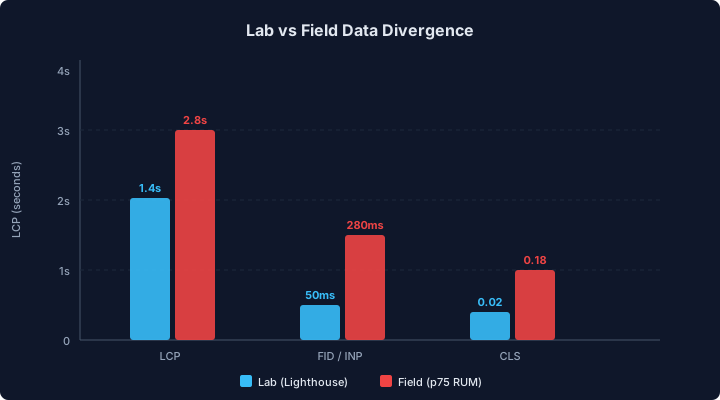
The bars on the left represent what your Lighthouse score tells you. The bars on the right represent what your users experience. The gap between them is where performance problems live and die unseen. Every optimization in this book targets the field numbers, not the lab numbers.
Chrome DevTools Performance Panel
The Performance panel in Chrome DevTools is the primary debugging tool for runtime performance problems. Not the Lighthouse panel. Not the Network panel in isolation. The Performance panel, because it shows the browser’s rendering pipeline as a timeline: what the main thread was doing, what was blocking rendering, and where the long tasks live.
To get useful data from a performance trace:
- Open DevTools, navigate to the Performance tab.
- Set CPU throttling to 4x slowdown (simulates a mid-tier mobile processor).
- Set Network throttling to “Slow 3G” or a custom profile matching your target audience.
- Click Record, load the page, interact with the critical user flow, then stop recording.
The trace shows horizontal bars on the main thread timeline. Each bar is a task. Tasks longer than 50ms are “long tasks” and are highlighted. Long tasks block the main thread, which blocks rendering, which blocks visual updates, which increases INP and delays LCP.
On the e-commerce product listing page, the initial performance trace showed:
- A 380ms JavaScript evaluation task during page load, parsing the product listing component bundle.
- A 120ms style recalculation triggered by a layout-shifting font swap.
- A 95ms “Recalculate Style” task triggered by a late-loading CSS file for a carousel component.
- The LCP image starting to load only after the JavaScript bundle had been parsed and executed, because the image URL was constructed in JavaScript rather than present in the initial HTML.
Each of these appears as a distinct block on the timeline. The Performance panel does not tell you which one to fix first. Field data tells you which metric is failing, and the Performance panel tells you which task is responsible.
Reading a Waterfall
The network waterfall in DevTools (or WebPageTest) shows every resource the page loads, when each request starts, how long DNS resolution takes, how long the TLS handshake takes, how long the server takes to respond (Time to First Byte), and how long the download takes.
The critical insight is the vertical line marking LCP. Every resource that loads before that line is on the critical path. Every resource that loads after that line did not contribute to LCP.
On the e-commerce listing page, the waterfall revealed:
- HTML document: 180ms TTFB, 40ms download.
- Main CSS bundle: starts at 220ms, 60ms download. Render-blocking.
- Main JS bundle: starts at 220ms (parallel with CSS), 340ms download. Render-blocking via
<script>withoutasyncordefer. - Product listing JS chunk: starts at 560ms (after main bundle parses and triggers dynamic import), 120ms download.
- Product image (LCP element): starts at 680ms (after product listing JS constructs the
<img>element), 600ms download. - LCP fires at 1,280ms on the developer machine.
The problem is visible in the waterfall: the LCP image cannot start loading until step 4 completes, which cannot start until step 3 completes. Three sequential round trips before the most important resource even begins to download. On a throttled connection with 150ms round-trip latency, those sequential steps add 450ms of pure network waiting.
WebPageTest for Realistic Conditions
WebPageTest runs real browsers on real devices in real locations. This is not a simulation. When you select “Moto G Power, 4G, Virginia”, your page loads on an actual Moto G Power connected to a 4G network in a Virginia data center.
The filmstrip view shows a series of screenshots at intervals during page load. On the e-commerce listing page tested from a Moto G Power on 4G:
- 0.0s: White screen
- 1.0s: White screen
- 2.0s: Header rendered, no product images
- 3.0s: Product grid skeleton visible, images still loading
- 4.2s: First product image visible (LCP)
- 5.8s: All above-the-fold images loaded
Compare this to the developer laptop filmstrip:
- 0.0s: White screen
- 0.3s: Header and product grid rendered
- 0.8s: First product image visible (LCP)
- 1.2s: All above-the-fold images loaded
The filmstrip makes the gap visceral. Your users stare at a white screen for two full seconds while your dev machine renders the page in 300ms.
WebPageTest also provides a connection view showing HTTP/2 multiplexing behavior, a content breakdown by MIME type, and a processing breakdown showing time spent in DNS, TCP, TLS, TTFB, and content download for each resource. The content breakdown for the e-commerce listing page showed:
- JavaScript: 420KB (58% of total transfer)
- Images: 180KB (25%)
- CSS: 62KB (9%)
- HTML: 18KB (2%)
- Fonts: 45KB (6%)
JavaScript consuming 58% of the transfer is the first signal. The 420KB is also 58% of the main thread parse and evaluation time. Reducing JavaScript transfer size is the highest-leverage optimization for this page, and subsequent chapters attack it directly.
Real User Monitoring with web-vitals
Field data collection requires instrumentation in your production application. The web-vitals library provides this with minimal overhead.
// BEFORE: No field data collection
// You have no idea what real users experience

// AFTER: Field data collection with web-vitals
import { onLCP, onINP, onCLS, type Metric } from "web-vitals";

interface VitalReport {
  name: string;
  value: number;
  rating: "good" | "needs-improvement" | "poor";
  delta: number;
  navigationType: string;
}

function sendToAnalytics(metric: Metric): void {
  const report: VitalReport = {
    name: metric.name,
    value: metric.value,
    rating: metric.rating,
    delta: metric.delta,
    navigationType: metric.navigationType ?? "unknown",
  };

  // Use sendBeacon for reliability on page unload
  const url = "/api/vitals";
  const body = JSON.stringify(report);

  if (navigator.sendBeacon) {
    navigator.sendBeacon(url, body);
  } else {
    fetch(url, {
      method: "POST",
      body,
      headers: { "Content-Type": "application/json" },
      keepalive: true,
    });
  }
}

onLCP(sendToAnalytics);
onINP(sendToAnalytics);
onCLS(sendToAnalytics);
The web-vitals library weighs under 2KB gzipped. It uses the browser’s PerformanceObserver API, which runs off the main thread and adds zero measurable overhead to INP or LCP.
The rating field tells you immediately whether the value is “good”, “needs-improvement”, or “poor” against the Core Web Vitals thresholds. The delta field gives you the incremental change since the last report, which matters for CLS because it accumulates over the session.
The navigationType field distinguishes between initial page loads, back/forward navigations, and prerendered pages. This matters because back/forward navigations often hit the bfcache and report artificially good LCP numbers. Filter these out when computing your baseline.
Once this data flows into your analytics backend, you compute percentiles. Not averages. The p75 is the standard reporting percentile for Core Web Vitals because it represents the experience of users in worse-than-median conditions, the users on slower devices and networks where your optimizations matter most.
The e-commerce platform’s field data after instrumentation:
| Metric | p50 | p75 | p90 |
|---|---|---|---|
| LCP | 2.8s | 4.1s | 6.2s |
| INP | 180ms | 320ms | 580ms |
| CLS | 0.04 | 0.12 | 0.31 |
The p75 LCP of 4.1 seconds is in the “poor” range. The p75 INP of 320ms is “needs improvement.” The p75 CLS of 0.12 is “needs improvement.” These are the numbers every subsequent chapter works to improve. The CI gates in Chapter 2 enforce that no code change makes these numbers worse.