Service Types and DNS Resolution
SummaryCovers ClusterIP as the default internal Service with...
Covers ClusterIP as the default internal Service with...
Covers ClusterIP as the default internal Service with iptables/IPVS routing, NodePort for external access on ports 30000-32767, LoadBalancer for cloud-provider integration, Service DNS resolution patterns, port vs targetPort vs containerPort, Endpoints verification, and imperative and declarative Service creation.
Service Types and DNS Resolution
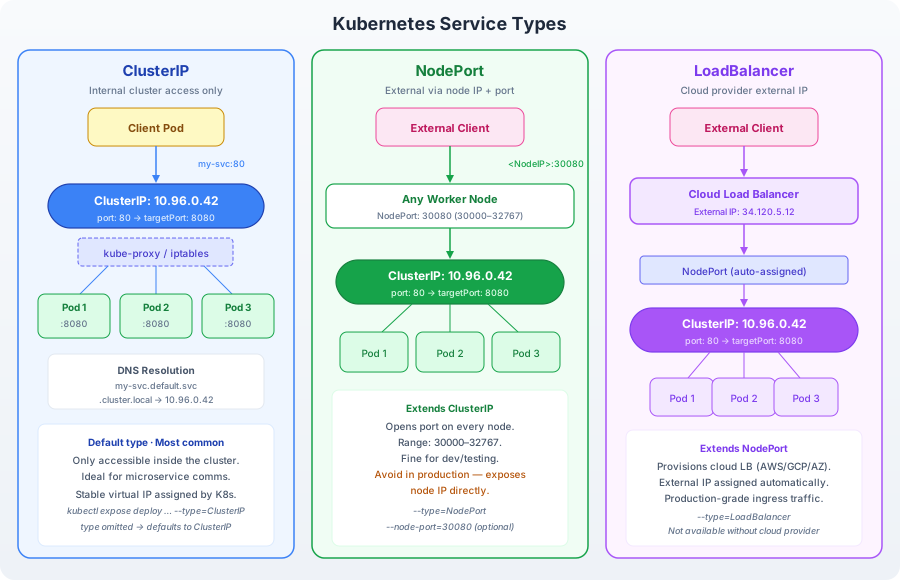
Kubernetes Service types build on each other: ClusterIP allocates an internal virtual IP that routes to Pod IPs via iptables or IPVS rules. NodePort extends ClusterIP by binding a static port (30000–32767) on every cluster node, so external clients can reach the Service through any node’s IP. LoadBalancer extends NodePort by requesting a cloud provider’s external load balancer, which distributes traffic to the NodePort across all nodes. Each Service type is a superset of the one before it — a LoadBalancer Service is also a NodePort and a ClusterIP.
ClusterIP: The Default Service
ClusterIP is the most common Service type and the one you will create most often on the CKAD exam. It assigns a virtual IP address from the cluster’s service CIDR range. This IP is not bound to any physical interface — it exists as routing rules in iptables (or IPVS, depending on the kube-proxy mode) on every node.
Creating a ClusterIP Service
Start with a Deployment to serve as the backend:
kubectl create deployment nginx --image=nginx:1.25 --replicas=3Create a Service imperatively using kubectl expose:
kubectl expose deployment nginx --port=80 --target-port=80This creates a ClusterIP Service named nginx that:
- Listens on port 80 (the
--portflag) - Forwards traffic to port 80 on the backing Pods (the
--target-portflag) - Selects Pods with the label
app=nginx(inherited from the Deployment)
Verify the Service:
kubectl get svc nginxExpected output:
NAME    TYPE        CLUSTER-IP     EXTERNAL-IP   PORT(S)   AGE
nginx   ClusterIP   10.96.45.123   <none>        80/TCP    5s
The CLUSTER-IP is the virtual IP assigned to this Service. The EXTERNAL-IP is <none> because ClusterIP Services are internal-only.
Declarative Service YAML
The equivalent YAML manifest:
apiVersion: v1
kind: Service
metadata:
  name: nginx
spec:
  type: ClusterIP
  selector:
    app: nginx
  ports:
    - protocol: TCP
      port: 80
      targetPort: 80
The selector field is critical. It must match the labels on the Pods you want the Service to route to. A mismatch between the Service selector and Pod labels is one of the most common debugging scenarios on the CKAD exam — the Service will exist but route to nothing.
Understanding port, targetPort, and containerPort
These three values confuse nearly every Kubernetes beginner because they all say “port” but refer to different things:
-
containerPort(in the Pod spec): Declares which port the container process listens on. This is purely informational — Kubernetes does not enforce it. If your app listens on 8080, setcontainerPort: 8080. -
port(in the Service spec): The port the Service exposes. Clients connect to<ClusterIP>:<port>. This is the Service’s front door. -
targetPort(in the Service spec): The port on the backing Pod where traffic is forwarded. This must match the port the container actually listens on (i.e., thecontainerPort).
A concrete example: your application container listens on port 8080. You want the Service to expose it on port 80:
# Pod spec
containers:
  - name: app
    image: my-app:v1
    ports:
      - containerPort: 8080

---
# Service spec
spec:
  ports:
    - port: 80          # Clients connect here
      targetPort: 8080  # Forwarded to the container
Clients call <ClusterIP>:80. The Service forwards to Pod IP on port 8080. The container receives the connection on 8080. If targetPort is omitted, it defaults to the value of port.
DNS Resolution Inside the Cluster
Every Service gets a DNS entry in CoreDNS following a predictable pattern:
<service-name>.<namespace>.svc.cluster.localFor a Service named nginx in the default namespace:
nginx.default.svc.cluster.localShort DNS Forms
You do not always need the full name. Kubernetes configures Pod DNS search domains so that shorter forms resolve:
- Same namespace: use the service name alone —
nginx - Cross-namespace: use
<service>.<namespace>—nginx.production - Fully qualified:
nginx.production.svc.cluster.local
On the exam, you’ll most often use the short form within the same namespace. Cross-namespace resolution comes up when a Pod in namespace frontend needs to reach a Service in namespace backend.
Testing DNS Resolution
Launch a temporary Pod with DNS tools:
kubectl run dnstest --image=busybox:1.36 --rm -it --restart=Never -- nslookup nginxExpected output:
Server:    10.96.0.10
Address:   10.96.0.10:53

Name:      nginx.default.svc.cluster.local
Address:   10.96.45.123
The resolved address matches the Service’s ClusterIP. To test cross-namespace resolution:
kubectl run dnstest --image=busybox:1.36 --rm -it --restart=Never -- nslookup nginx.defaultYou can also test from a long-running Pod:
kubectl exec -it busybox -- nslookup nginx.default.svc.cluster.localVerifying Endpoints
Endpoints are the glue between a Service and its Pods. When the Service selector matches Pod labels, the Endpoints controller automatically populates the Endpoints object with the IPs of those Pods.
kubectl get endpoints nginxExpected output:
NAME    ENDPOINTS                                      AGE
nginx   10.244.1.3:80,10.244.1.4:80,10.244.2.5:80     2m
Three IPs — one for each replica in the Deployment. If this list is empty, the Service selector does not match any Pod labels. This is the first diagnostic step when a Service is unreachable.
Scale the Deployment and watch Endpoints update:
kubectl scale deployment nginx --replicas=5
kubectl get endpoints nginx
The Endpoints list now shows five IPs. Scale down:
kubectl scale deployment nginx --replicas=2
kubectl get endpoints nginx
Down to two. Endpoints track the live Pod set in real time.
NodePort: External Access via Node IPs
NodePort extends ClusterIP by opening a specific port on every node in the cluster. External clients can reach the Service by connecting to any node’s IP on that port.
Creating a NodePort Service
kubectl expose deployment nginx --type=NodePort --port=80 --target-port=80Or declaratively:
apiVersion: v1
kind: Service
metadata:
  name: nginx-nodeport
spec:
  type: NodePort
  selector:
    app: nginx
  ports:
    - protocol: TCP
      port: 80
      targetPort: 80
      nodePort: 30080
If you omit nodePort, Kubernetes assigns one from the 30000–32767 range automatically.
kubectl get svc nginx-nodeportExpected output:
NAME             TYPE       CLUSTER-IP     EXTERNAL-IP   PORT(S)        AGE
nginx-nodeport   NodePort   10.96.78.210   <none>        80:30080/TCP   3s
The 80:30080 notation means port 80 on the ClusterIP maps to port 30080 on every node.
How NodePort Routing Works
When traffic arrives at <NodeIP>:30080, kube-proxy forwards it to the Service’s ClusterIP on port 80, which then routes to a backing Pod on port 80. The path is:
Client → NodeIP:30080 → ClusterIP:80 → PodIP:80Every node in the cluster listens on port 30080, even nodes that are not running the target Pods. Kube-proxy handles cross-node routing.
Testing in Kind
In a Kind cluster, nodes are Docker containers. Get the node’s internal IP:
kubectl get nodes -o wideUse the node’s INTERNAL-IP to test:
curl http://<NODE-INTERNAL-IP>:30080If you configured port mappings in your Kind cluster configuration (as described in Chapter 2), you can also reach the NodePort via localhost.
LoadBalancer: Cloud Provider Integration
LoadBalancer extends NodePort by provisioning an external load balancer through the cloud provider’s API. In AWS, this creates an ELB/NLB. In GCP, a Google Cloud Load Balancer. The external load balancer distributes traffic across all nodes on the NodePort.
apiVersion: v1
kind: Service
metadata:
  name: nginx-lb
spec:
  type: LoadBalancer
  selector:
    app: nginx
  ports:
    - protocol: TCP
      port: 80
      targetPort: 80
kubectl get svc nginx-lbIn a cloud environment:
NAME       TYPE           CLUSTER-IP     EXTERNAL-IP      PORT(S)        AGE
nginx-lb   LoadBalancer   10.96.90.100   34.123.45.67     80:31234/TCP   30s
The EXTERNAL-IP is the load balancer’s public IP. Clients connect there, and the LB routes to NodePort 31234 on any cluster node.
In a Kind cluster (no cloud provider), EXTERNAL-IP stays <pending> indefinitely. This is expected — there is no cloud API to provision a load balancer. Tools like MetalLB can simulate LoadBalancer behavior in bare-metal or local environments, but they are outside the scope of CKAD preparation.
CKAD Exam Note
The exam environment runs on a real cluster with cloud capabilities. You may be asked to create a LoadBalancer Service and verify the external IP is assigned. Know the YAML structure and understand that EXTERNAL-IP in <pending> state means the cloud controller has not yet provisioned the load balancer.
Port-Forwarding for Quick Testing
During the exam, you may not have external access to Services. kubectl port-forward creates a tunnel from your local machine to a Service or Pod:
kubectl port-forward svc/nginx 8080:80This maps local port 8080 to Service port 80. Open another terminal and test:
curl http://localhost:8080Port-forwarding is a debugging tool, not a production pattern. It is useful on the exam when you need to verify a Service works without setting up NodePort or Ingress.
Multi-Port Services
A single Service can expose multiple ports. This is common when an application serves HTTP on one port and metrics on another:
apiVersion: v1
kind: Service
metadata:
  name: multi-port
spec:
  selector:
    app: my-app
  ports:
    - name: http
      protocol: TCP
      port: 80
      targetPort: 8080
    - name: metrics
      protocol: TCP
      port: 9090
      targetPort: 9090
When a Service defines multiple ports, each port must have a name field. Without names, the API server rejects the manifest. Clients specify which port they want by connecting to the Service IP on the corresponding port number.
Session Affinity
By default, kube-proxy distributes requests across backing Pods using a round-robin algorithm (iptables mode) or weighted least-connections (IPVS mode). If your application requires that a client consistently reaches the same Pod, configure session affinity:
spec:
  sessionAffinity: ClientIP
  sessionAffinityConfig:
    clientIP:
      timeoutSeconds: 10800
With sessionAffinity: ClientIP, kube-proxy routes all requests from a given client IP to the same Pod for the duration of the timeout (default: 10800 seconds / 3 hours). This is sticky sessions at the transport layer — not cookie-based HTTP stickiness, which requires an Ingress Controller.
Session affinity is useful for stateful applications that store session data in memory. On the CKAD exam, you are unlikely to be asked to configure it, but recognizing the field helps when debugging unexpected routing behavior.
Exam Strategies for Services
Services appear in nearly every CKAD exam task, whether directly or as supporting infrastructure:
- Use imperative creation when possible:
kubectl expose deployment <name> --port=80 --target-port=8080is faster than writing YAML. - Verify Endpoints immediately: After creating a Service, run
kubectl get ep <name>to confirm Pods are connected. - Remember DNS shorthand: Within the same namespace, the service name alone resolves. Cross-namespace, use
<service>.<namespace>. - Default type is ClusterIP: If a task says “create a Service” without specifying the type, ClusterIP is correct.
- Port-forward for quick tests:
kubectl port-forward svc/<name> 8080:80lets you test without creating additional Pods.
Cleanup
kubectl delete deployment nginx
kubectl delete svc nginx nginx-nodeport nginx-lb 2>/dev/null